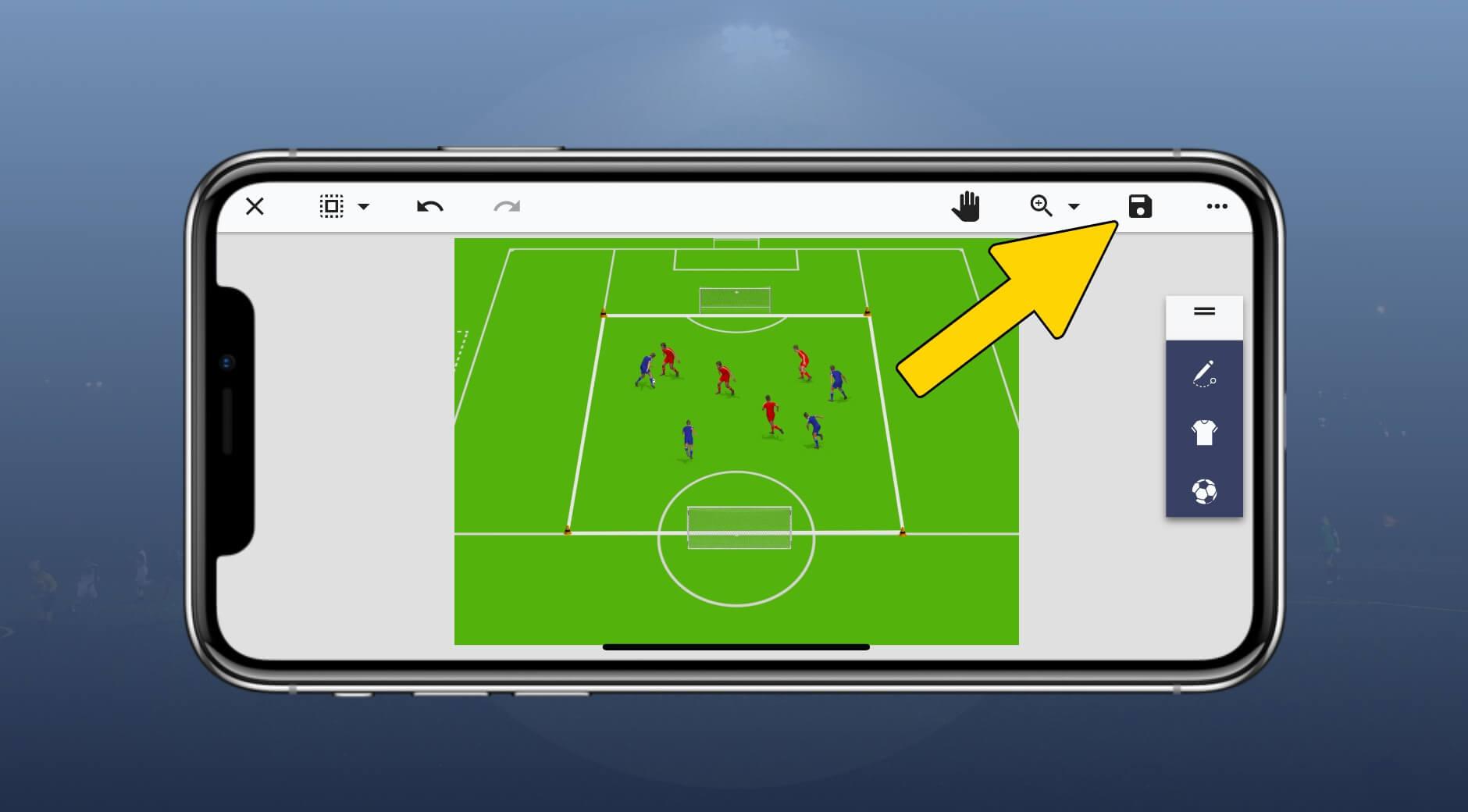
Get started with the mobile drills & tactics app

Exercises

Outdated tutorial

You're viewing a tutorial for our old planet.training app, which will no longer be maintained or supported after July 16, 2025. For up-to-date guides and tutorials, please click below to visit the new planet.training app documentation.

Documentation of new planet.training app

You are new to our mobile soccer drills & tactics app, and just want to test out the free drawing feature? Then let us introduce you to the first steps you need to take!

Step 1

Open the app and start a new drawing
1
1
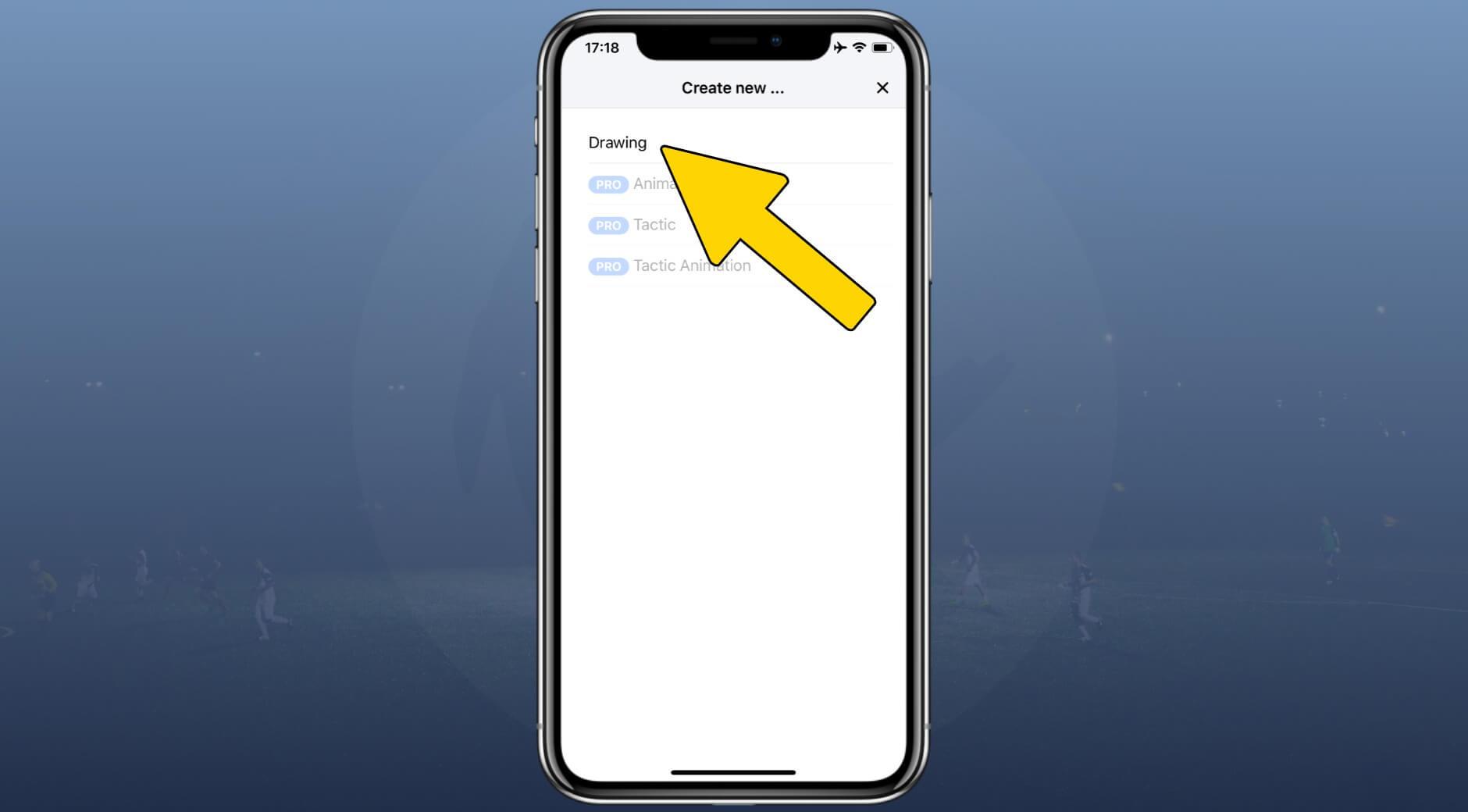
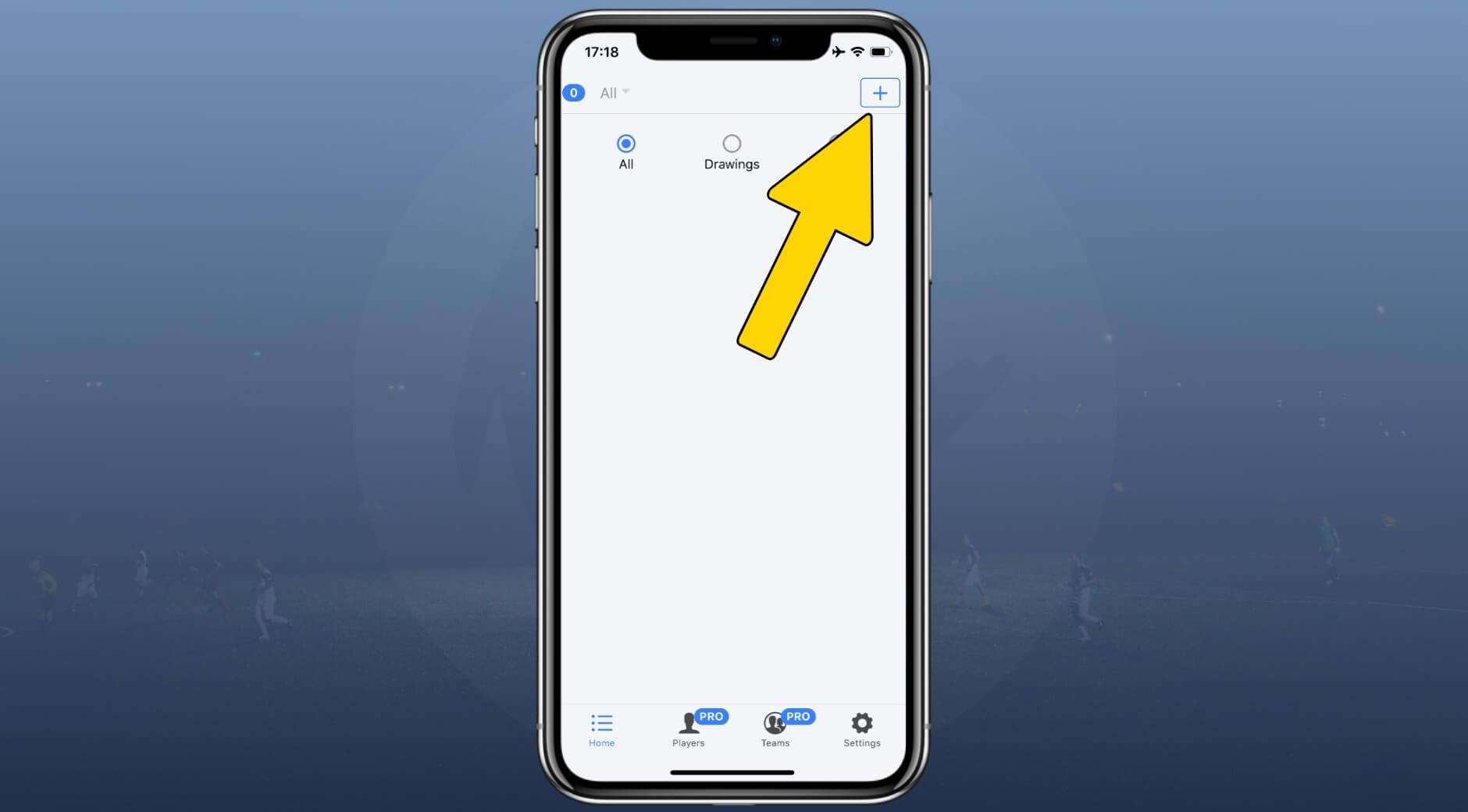
Click on the "+"-Button to open the "Create" feature.
2
2
Now select "Drawing" as this is the only feature currently unlocked (up to 3 drills) for free members.
3
3
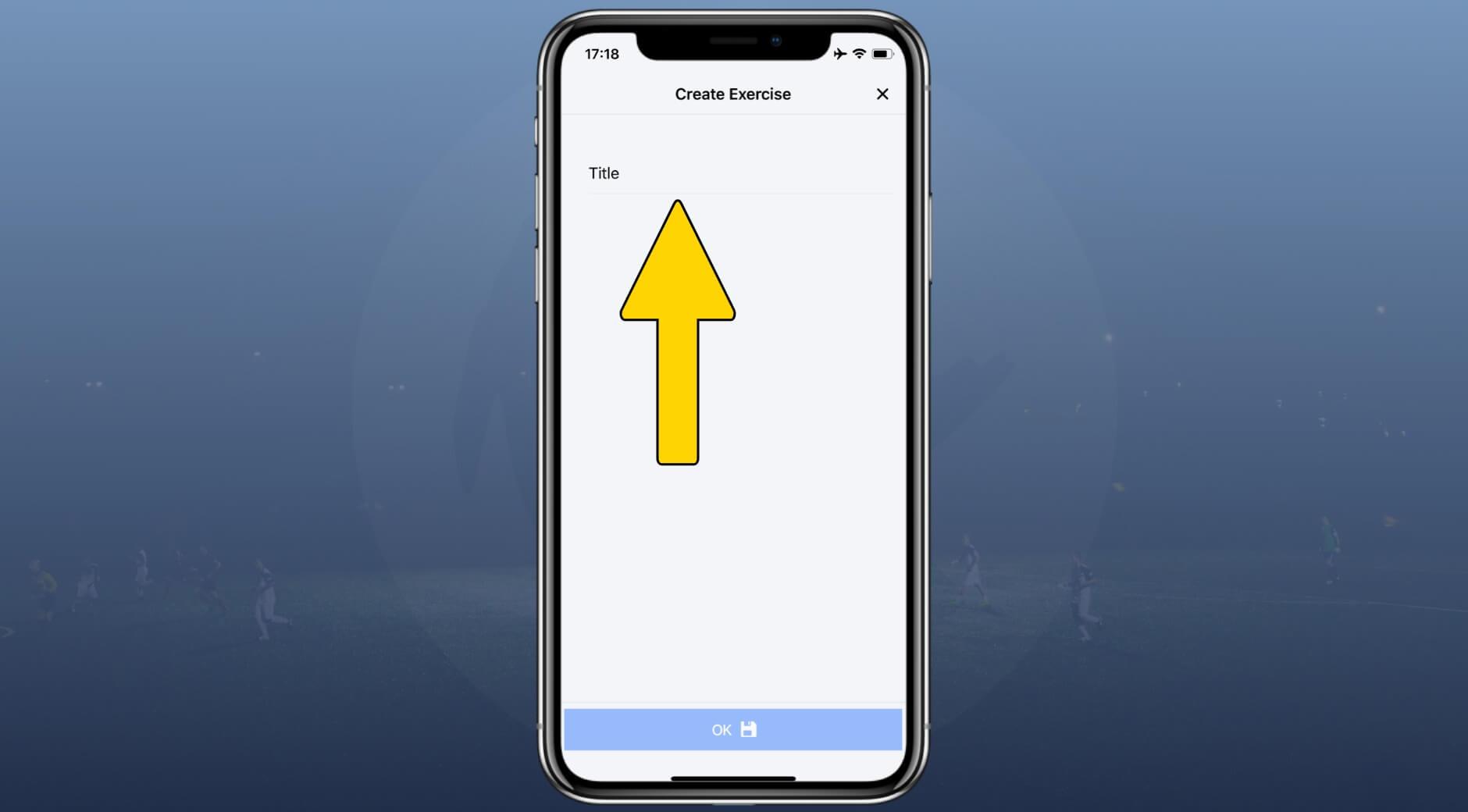
Fill in a title for your drill.
4
4
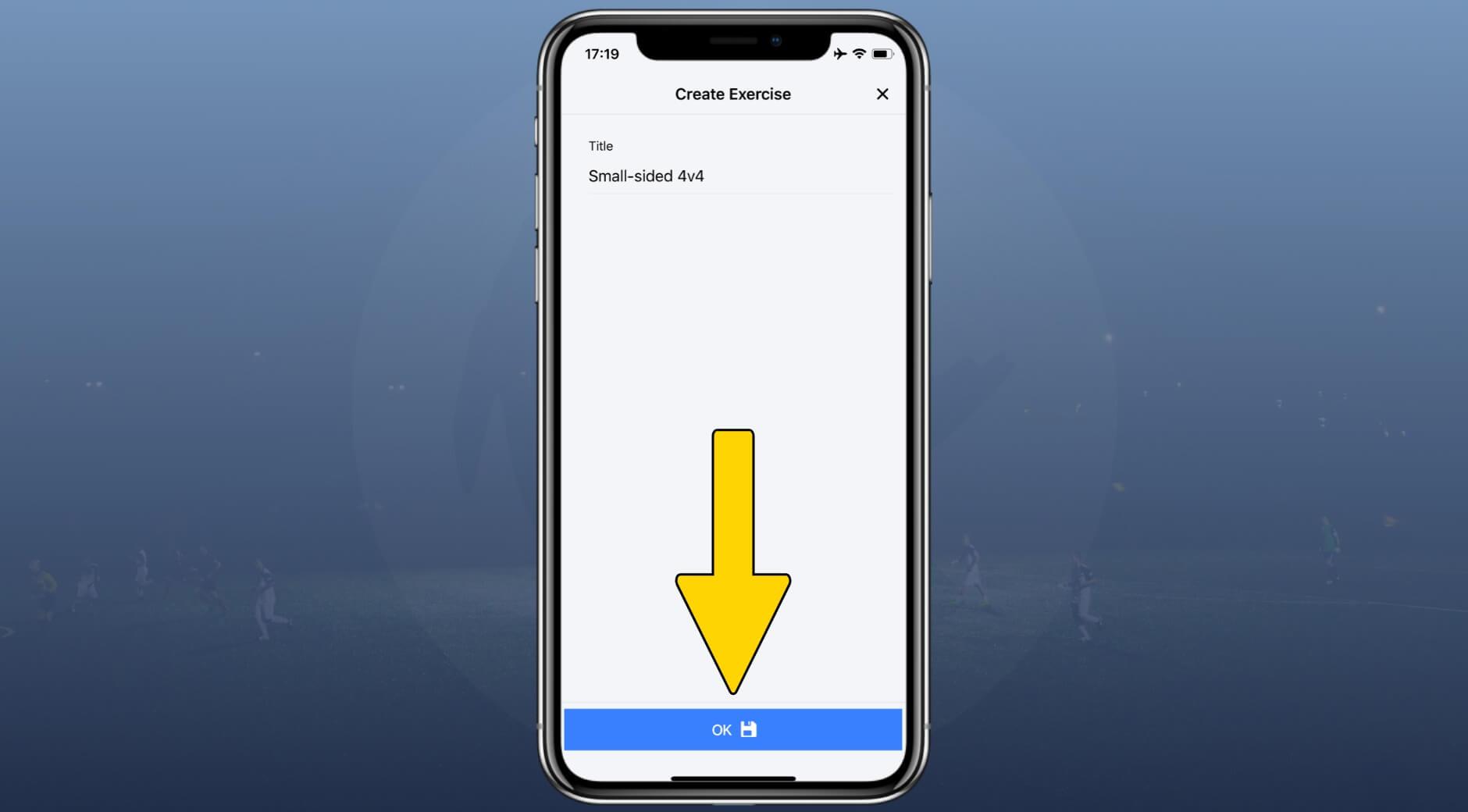
Hit the "save" button, when you are happy with your title.

Step 2

Start drawing your drill. More about the specific drawing features of our editor here.
1
1
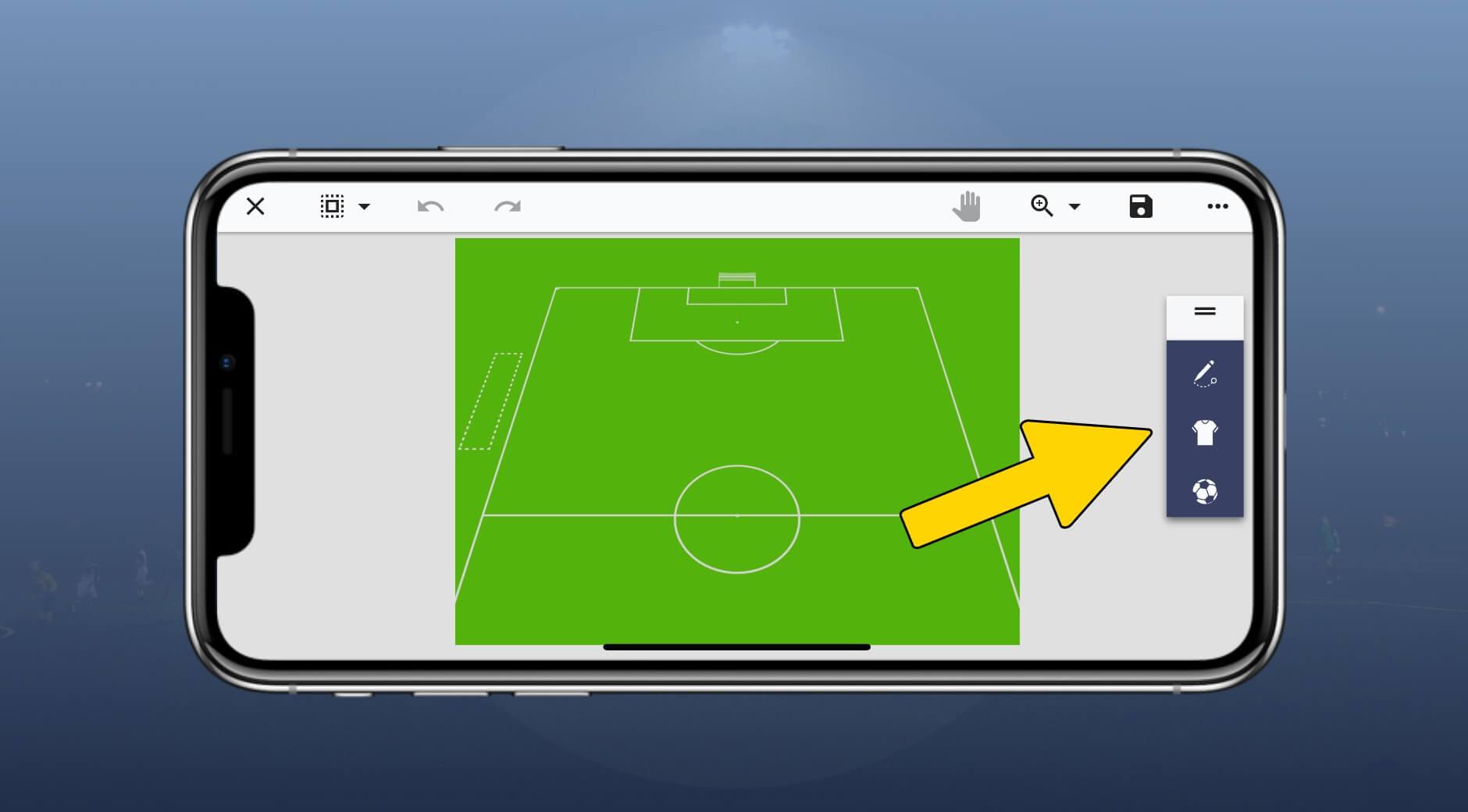
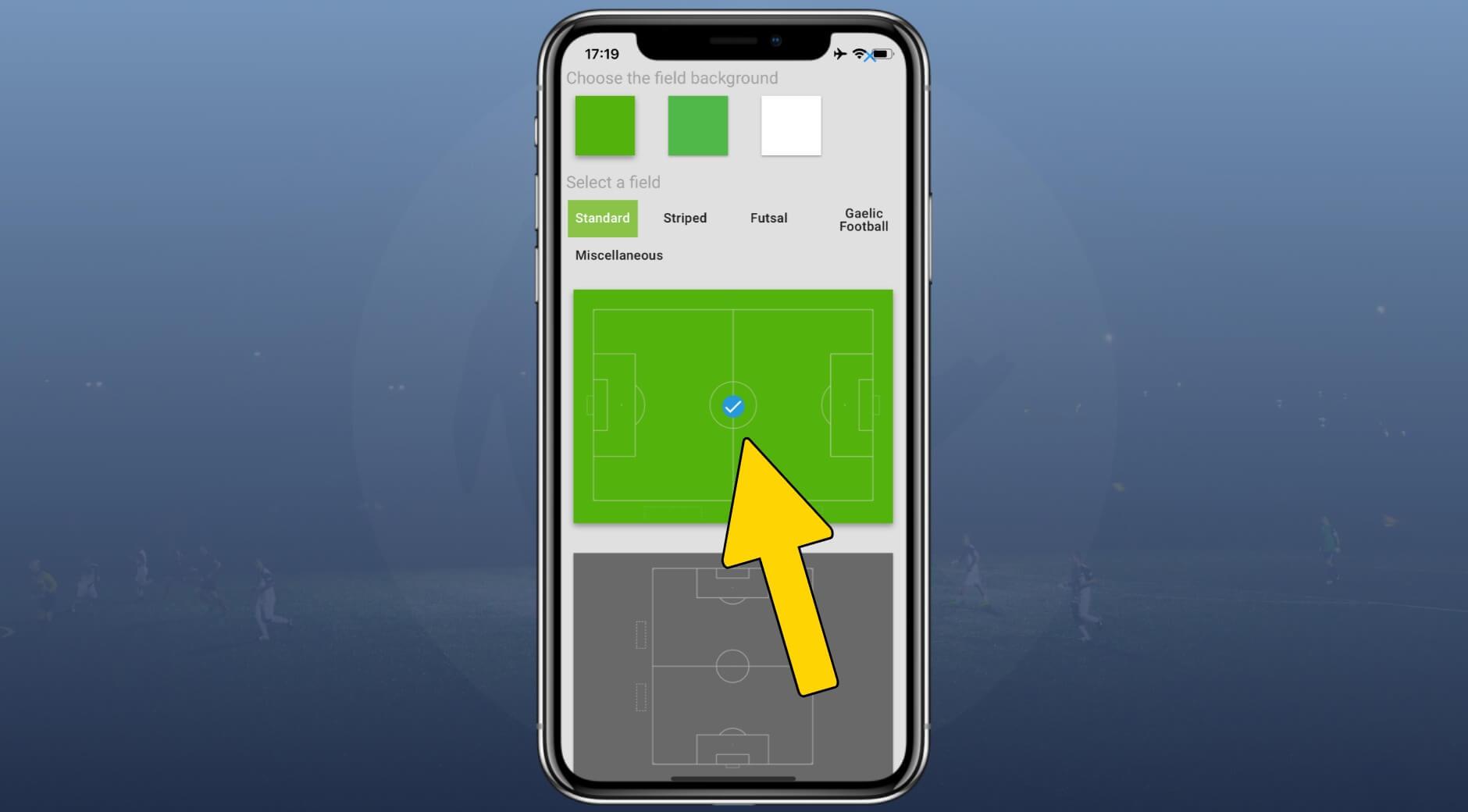
Select a field that suits your drill. Then turn your phone to get the maximum vision of your drawing.
2
2
Select drawing icons, players and drill equipment from the icon panel on the right size. You can adjust color, size and angle of the selected icons with the blue top bar, as soon as you have selected an icon on the field.
3
3
Click the "save" button as soon as you are satisfied with your drawing.

WE ELEVATE YOUR GAME

Start free trial

*No payment info required